View differences with colour highlighting
How to use the comparison view
Detail guide
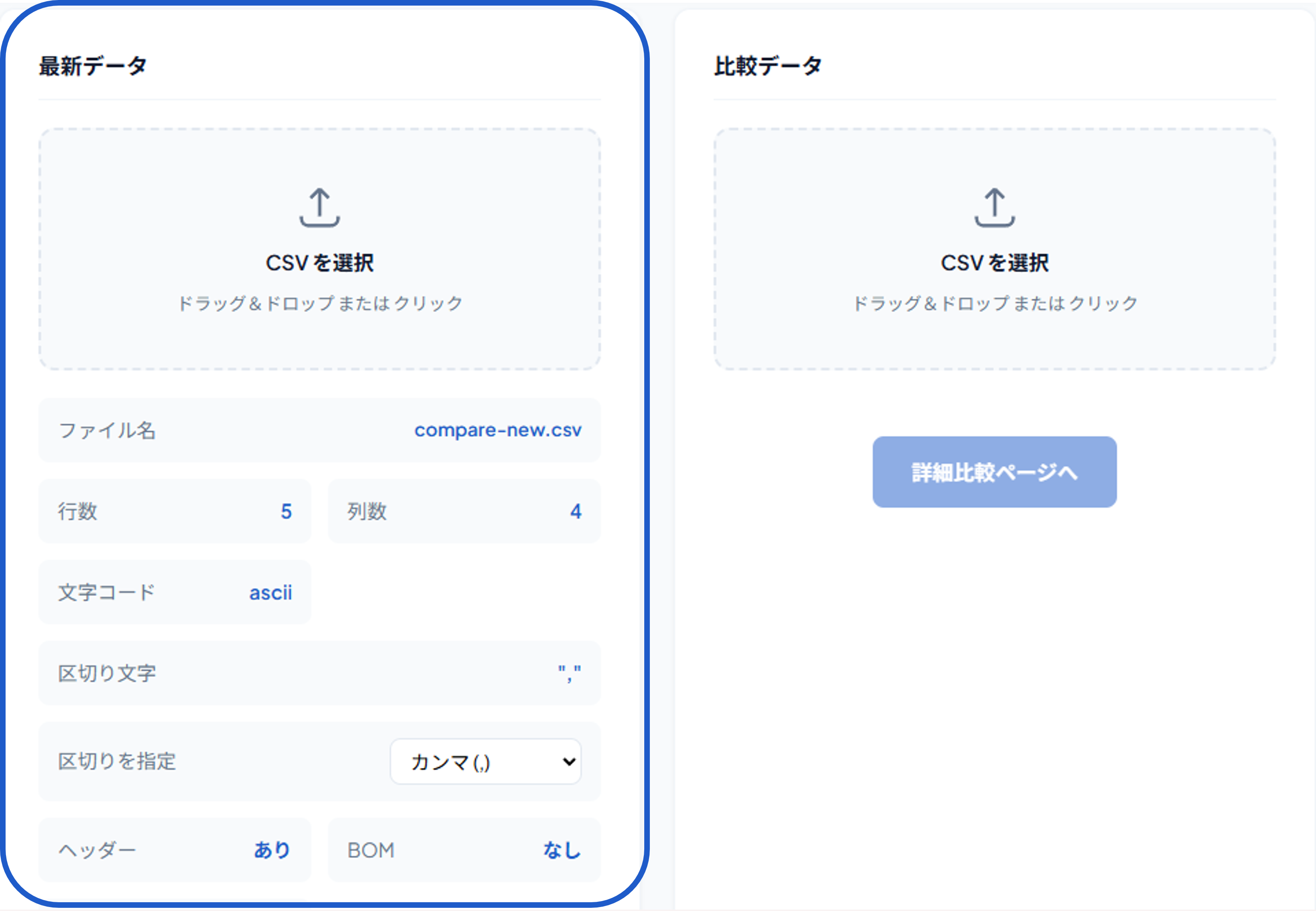
Step 1
Choose columns to display
Check the columns to show in the comparison table under «Select columns», then click «Show comparison table». Change the key column for row matching in «Key column» if needed.
Search by header name to quickly pick the columns you need.
Added (green), deleted (red), and changed (yellow) cells are shown in the table. Click a row number to jump to that row.
Use «Hide empty columns» to hide columns with no values for a cleaner view.
Open «Choose columns» to show or hide columns individually. Use «Show all», «Hide all», or «Hide empty columns» for bulk changes.
To compare different files, use «Select two files» at the top to start over.